Introduction to Java
Introduction to Java
In this chapter we are going to go through a short introduction to the Java programming language. Java is one of the primary programing languages used to create native Android apps. Kotlin is the other one. In this book we are going to focus on using Java to create our apps.
The following code listing is a small Java program that prints the words “Hello World!” on the screen.
-
The
packagekeyword is used to indicate where the class is stored. It is used to group related classes. In our case our class is stored in the com/foo/ directory. -
The
importkeyword is used to import libraries that are used by the program -
All Java programs are contained in a
class. Aclassis made up of an optional access modifier,publicin our case, the keywordclassand the name of the classFoo. A class begins and ends with a pair of open and close parenthesis {}. Anything with the parenthesis is called a code block.
Let us delve a bit deeper into the access modifier. The access modifier determines if a class may been seen by other classes. In our case our class is public and so it can be seen by other classes. A private class is not visible to other classes. A protected class can only be accessed by subclasses and classes in the same package. A class without an access modifier is only accessible to classes within its package.
-
A class can contain several methods. Our class also contains a special method called
main. This is the entry point for your program and is the first method that is called when you execute a program. Thepublicaccess modifier means that the method can accessed by other classes. Thestatickeyword means that the method can be used without instatiating the class. We will learn more about instatiation later or in this chapter. Thevoidkeyword means that the method does not return anything. TheString arg[]parameter is an array that holds any arguments that you call your program with. -
To print a value to the screen we use the
System.out.println()statement. A statement is a line of code that ends with a semi colon;.
package com.foo; //1

import java.io.*; //2

public class Foo { //3

    public static void main (String args[]){ //4

        System.out.println("Hello World!"); //5

    }
}
Variables
In programming languages in general and in Java in particular, we have what are known as variables. A variable as a named location that can hold a value. Java has the following built in types of variable,
String - holds textual values like "Hello"
char - holds characters like 'a', 'B'
int - holds whole numbers like 0, 1, 4
double - holds numbers with decimal places like 0.1, 10.89
boolean - holds the value true or false
In the following example our variable is of type int, the variable name is feet and we use the = sign to assign the variable with the value 5.
A variable can be declared inside any code block but can only be used within the block and after it has been declared. This is know as the scope of the variable.
Variable names are case sensitive and by convention begin with a letter. Subsequent characters in the name may be letters, digits, dollar sign $ or an underscore _.
package foo;

public class Foo {

    public static void main (String args[]){

        int feet = 5;
        double inches = 0.2;
        char min = '\'';
        char sec;
        char space = ' ';
        String label = " tall";

        sec = '"';

        System.out.println(feet + inches + "" + min + label);

    }
}
Methods
In the following example we’ve created a method public String message(){...}. The public access modifier means that this method can be access by any class. The String keyword means that this method will return a String. The method name is “message”. This particular method does not accept any parameters and so it is no entries in the brackets ().
Our second method public int feetToInches(int i){...} is called “feetToInches”, is public and returns an int. In the brackets () we have our parameters. In this case our method accept only one int parameter. Note that a method can have more than one parameter, for example myMethod(int a, int b, double c, String d){};
package com.foo;

public class Foo {

    public String message (){
        String msg = " to inches is";
        return msg;
    }

    public int feetToInches(int i){
        int ans = i * 12;
        return ans;
    }
    public static void main (String args[]){
        int feet = 6;
        Foo obj = new Foo();


        String greetings = obj.message();
        int answer = obj.feetToInches(6);

        System.out.println(feet + greetings);
        System.out.println(answer);
    }
}
Objects
A class is a template for creating objects and almost everything in Java is an object. In Java lingo the creation of the object is called “instantiation”. In our example below we instantiate the method obj using the new keyword. In order words obj is an instance of the Foo class. We then call the myMethod method to print “Hello World!” to the screen.
package com.foo;

class Foo {

    public void myMethod(){

        System.out.println("Hello World!");
    }


    public static void main(String[] args){
        Foo obj = new Foo();

        obj.myMethod();
    }
}
Control Statements
Usually your Java code is executed by the computer from top to bottom but from time to time you will want change this flow. For instance sometimes you will want the computer to skip to or repeat a portion of your code etc. Using control statements, you can control the order in which your
code is executed. We are going to look at if statements, while
loops and for loops.
if statement
An if statement will execute or skip a block of code depending on
whether a given condition is true or not.
To illustrate this, let us take a look at the following code. The
variable today stores the current day of the week as a number
between 0 and 6. The statement checks to see whether the
condition is true or not. In this case it checks to see if today
is equal to 1, (today == 1). If this condition is true then the
message "Today is Monday" is displayed. If however, the condition
is false then "Today is not Monday" is displayed.
package com.foo;

import java.time.LocalDate;

public class Foo {
    public static void main(String[] args){
        LocalDate date = LocalDate.now();
        int today = date.getDayOfWeek().getValue();

        if (today == 1){
            System.out.println("Today is Monday");
        }else{
            System.out.println("Today is not Monday");
        }

    }
}
In the following code, if today is Saturday (the number 6) then
the message "Today is Saturday" is displayed. If today is
Sunday then the message "Today is Sunday" is displayed. If all
the conditions are false then "Today is a weekday" is displayed.
package com.foo;

import java.time.LocalDate;

public class Foo {
    public static void main(String[] args){
        LocalDate date = LocalDate.now();
        int today = date.getDayOfWeek().getValue();

        if (today == 6){
            System.out.println("Today is Saturday");
        } else if (today == 0){
            System.out.println("Today is Sunday");
        }else{
            System.out.println("Today is a weekday");
        }
    }
}
In the following code, the statement
System.out.println("Any day is an excuse to celebrate") is always executed but
the statement System.out.println("Today is a weekend") is only executed when
today is Saturday or Sunday.
package com.foo;

import java.time.LocalDate;

public class Foo {
    public static void main(String[] args){
        LocalDate date = LocalDate.now();
        int today = date.getDayOfWeek().getValue();

        if (today == 0 || today == 6){
            System.out.println("Today is a weekend");
        }
        System.out.println("Any day is an excuse to celebrate");
    }
}
while loop
This control statement is used to continue executing a block of
code while a condition is true. The following code will continue
displaying displaying the value of a counter i while it is less that the
number 5.
package com.foo;

public class Foo {
    public static void main(String[] args){
        int i = 1;
        while (i < 5){
            System.out.println(i);
            i = i + 1;
        }
    }
}
for loop
We use the for loop whenever we want to execute a block of code iterating over some kind of list of items. The following code is a simple for loop. We iterate through a list of numbers, technically an array of numbers, and display each number in the list.
package com.foo;

public class Foo {
    public static void main(String[] args){

        int[] numbers = {1,2,3,4,5};

        for (int number : numbers){
            System.out.println(number);
        }
    }
}
Running your Java code
To run your Java code follow the proceeding steps.
-
File -> New -> New Project…
-
On the Choose your project screen select “Add no Activity” and click Next

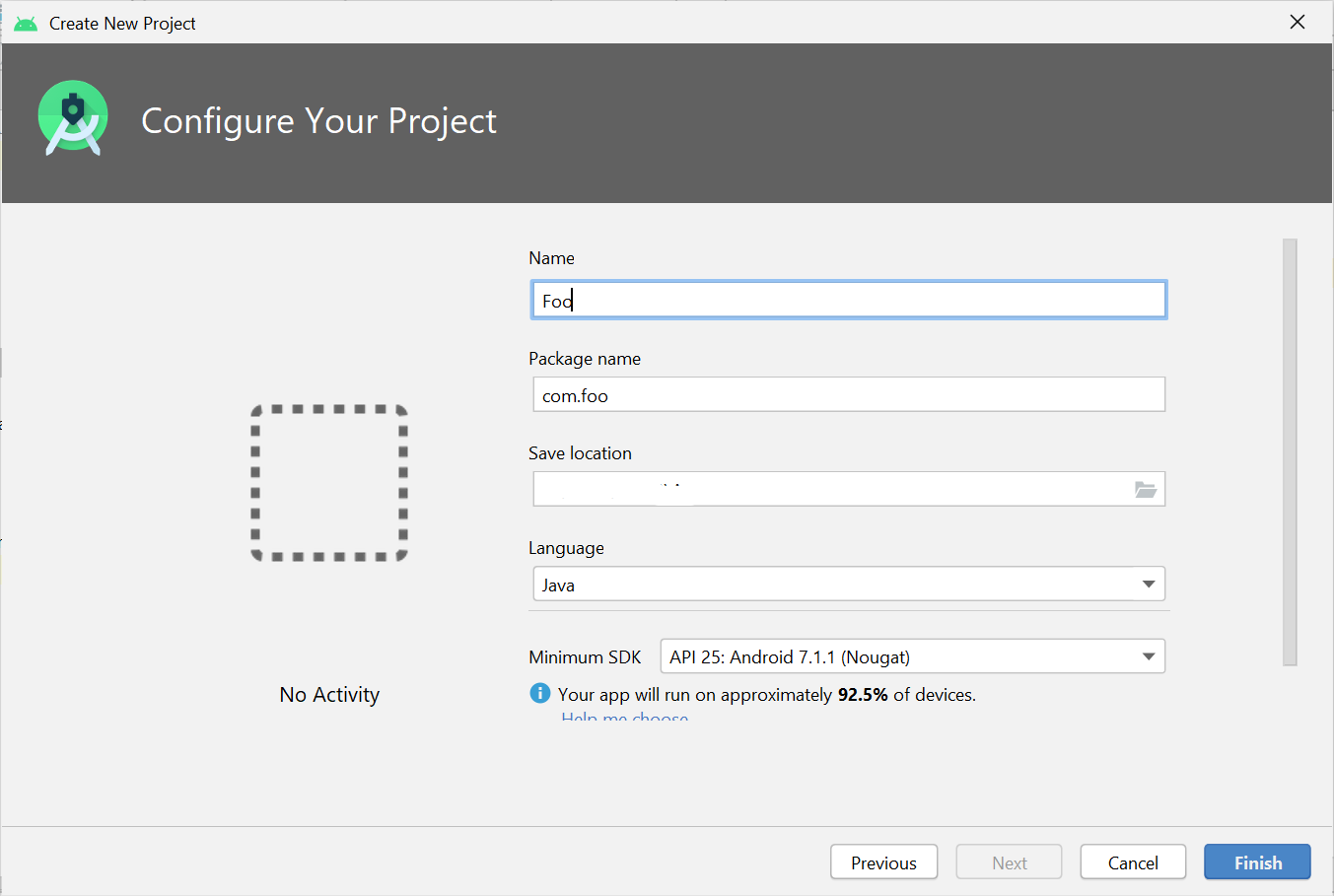
- Enter “Foo” in the Name field, “com.foo” in the Package field and select “Java” in the language field on the Configure your project screen then click Finish
- Right click/Control-click on app in the project explorer. The select New -> Module

- Select “Java or Kotlin Library” on the New Module screen and click Next

- Enter “Foo”, Package name “com.foo”, select language “Java” and Click Finish on the Java Kotlin Library screen

- Expand the lib directory in the project explorer then open “Foo.java”

-
Type your code listing in “Foo.java”
-
Run -> Run… -> Edit Configurations…

- Click the “+” button then select “Application”

-
In the “Use classpath of module:” field select “lib”
-
In the “Main Class” field click the “…” button
-
In the Choose Main Class screen select the Project tab
-
Select the “Foo” class

- To run to code click the Run button on the menu bar

- The output for your program will be visible in the console.

Summary
A good place to learn more about Java is the www.java.com website.