Fragments
Fragments
Fragments were introduced in Android 3.0, aka Honeycomb. Why is this important? Well, Honeycomb is when Android started supporting tablets and devices with larger screen. You know had a larger screen real estate to work with. While previously you had one Activity covering the whole screen you could now how several modular screen within one screen all interacting with one another. The Fragement was created to help facilitate this.
While Fragements are similar to Activities in that they contain the visible elements of your app. They differ in that they must be contained inside an Activity and although they have their own life cycle, it is influenced by the life cycle of the Activity within which they finds themselves. For instance, if an Activity is destroyed then all Fragments attached to it will also be destroyed. Additionally, Fragments are reusable.
Fragment Lifecycle
Fragments like Activities also have states. We have several callbacks and when a callback moves from one state to another it emitts a callback.
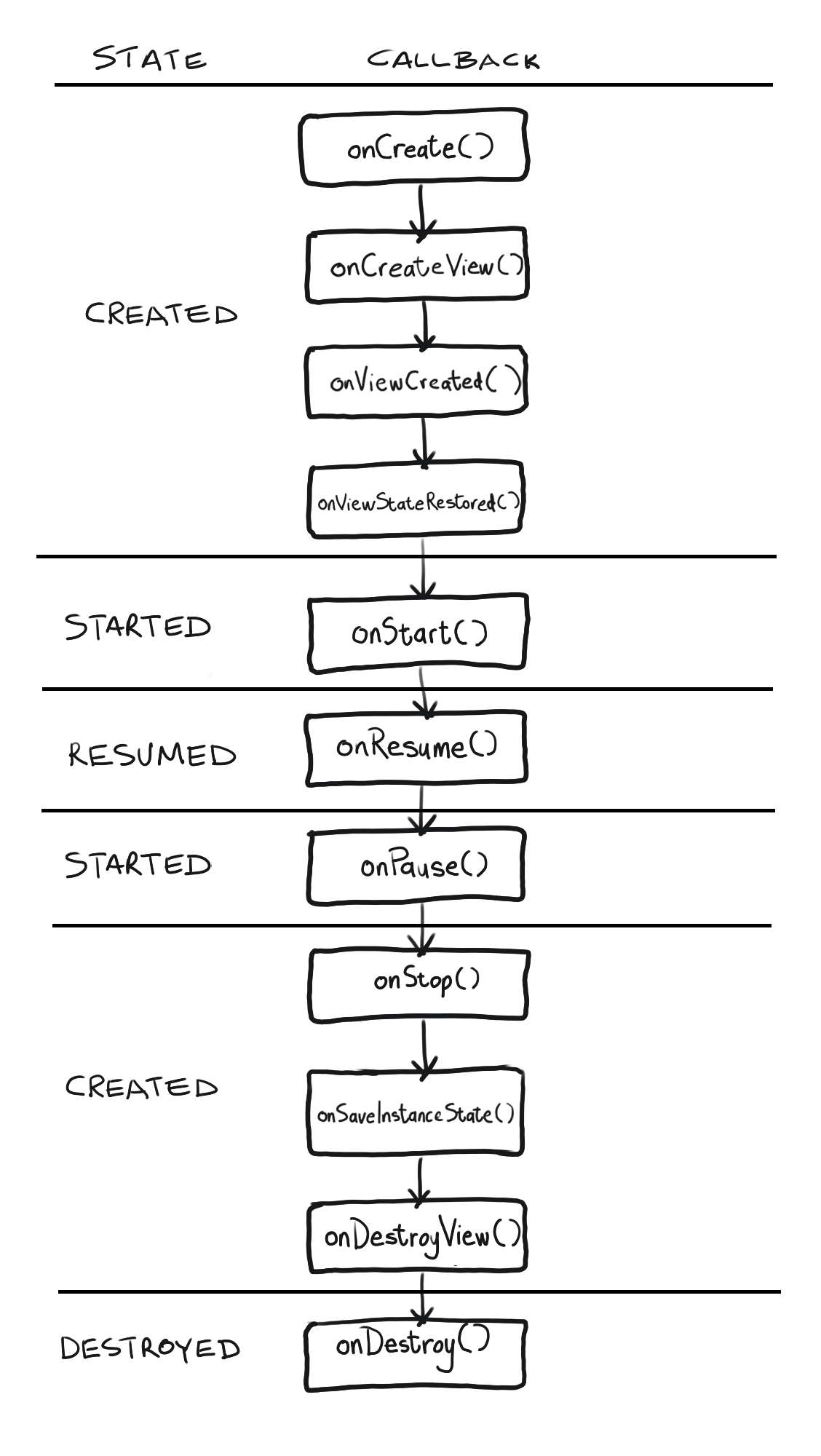
Fragment Example
In the previous chapter we created a version of our Netflix clone app that was made up of two Activities. The main Activity housed a home screen and the second Activity house our search screen. Similarly in this chapter we are going to create a Netflix clone with these two screens. However, we are going to use Fragments to implement the screens.
The functionality of the app will be such that when the user taps the main menu they will be taken to the main Fragment and when they tap the search menu they will be taken to the search Fragment.
Let us proceed with creating our app.
Create a Navigation Drawer Project
-
Open Android Studio. If you are presented with a “Welcome to Android Studio” screen then click “Start a new Android Studio project” otherwise navigate to File -> New -> New Project.
-
Choose “Navigation Drawer Activity” and click Next.
-
Fill in the fields in the “Configure your new project” screen with the following values then click Finish.
- Name: bottomnav
- Package Name: com.budu3.bottomnav
- Language: Java
Enter your MainActivity code
- Enter the code below in your MainActivity.java file.
package com.thebook.bottomnav;

import android.os.Bundle;

import com.google.android.material.bottomnavigation.BottomNavigationView;

import androidx.appcompat.app.AppCompatActivity;
import androidx.navigation.NavController;
import androidx.navigation.Navigation;
import androidx.navigation.ui.AppBarConfiguration;
import androidx.navigation.ui.NavigationUI;

public class MainActivity extends AppCompatActivity {

    @Override
    protected void onCreate(Bundle savedInstanceState) {
        super.onCreate(savedInstanceState);
        setContentView(R.layout.activity_main);
        BottomNavigationView navView = findViewById(R.id.nav_view);
        // Passing each menu ID as a set of Ids because each
        // menu should be considered as top level destinations.
        AppBarConfiguration appBarConfiguration = new AppBarConfiguration.Builder(
                R.id.navigation_home, R.id.navigation_dashboard, R.id.navigation_notifications)
                .build();
        NavController navController = Navigation.findNavController(this, R.id.nav_host_fragment);
        NavigationUI.setupActionBarWithNavController(this, navController, appBarConfiguration);
        NavigationUI.setupWithNavController(navView, navController);
    }

    @Override
    public boolean onSupportNavigateUp() {
        NavController navController = Navigation.findNavController(this, R.id.nav_host_fragment);
        return navController.navigateUp();
    }

}
Create your Fragments classes
Enter the code below in your HomeFragment.java
package com.thebook.bottomnav;

import android.os.Bundle;

import com.google.android.material.bottomnavigation.BottomNavigationView;

import androidx.appcompat.app.AppCompatActivity;
import androidx.navigation.NavController;
import androidx.navigation.Navigation;
import androidx.navigation.ui.AppBarConfiguration;
import androidx.navigation.ui.NavigationUI;

public class MainActivity extends AppCompatActivity {

    @Override
    protected void onCreate(Bundle savedInstanceState) {
        super.onCreate(savedInstanceState);
        setContentView(R.layout.activity_main);
        BottomNavigationView navView = findViewById(R.id.nav_view);
        // Passing each menu ID as a set of Ids because each
        // menu should be considered as top level destinations.
        AppBarConfiguration appBarConfiguration = new AppBarConfiguration.Builder(
                R.id.navigation_home, R.id.navigation_dashboard, R.id.navigation_notifications)
                .build();
        NavController navController = Navigation.findNavController(this, R.id.nav_host_fragment);
        NavigationUI.setupActionBarWithNavController(this, navController, appBarConfiguration);
        NavigationUI.setupWithNavController(navView, navController);
    }

    @Override
    public boolean onSupportNavigateUp() {
        NavController navController = Navigation.findNavController(this, R.id.nav_host_fragment);
        return navController.navigateUp();
    }

}
If for some reason you do not have your Fragment sconfolding code then create them manually as follows;
- Create packages for your Fragment classes
- Select the ui directory and navigate to File -> New -> Package
- Enter new package name: com.budu3.bottomnav.ui.home and click OK.
- Create new Fragments
- Click on the newly created action directory and then navigate to File -> New -> Fragment -> Fragment (Blank)
- In the “Configure Component” screen enter Fragment Name: Home and click Finish.
Create your Layout
Enter the code below in your fragment_home.xml file.
<?xml version="1.0" encoding="utf-8"?>
<ScrollView xmlns:android="http://schemas.android.com/apk/res/android"
    xmlns:app="http://schemas.android.com/apk/res-auto"
    android:layout_width="match_parent"
    android:layout_height="match_parent">

    <LinearLayout
        android:id="@+id/container"
        android:layout_width="match_parent"
        android:layout_height="match_parent"
        android:background="#070707"
        android:orientation="vertical">

        <ImageView
            android:id="@+id/imageView2"
            android:layout_width="51dp"
            android:layout_height="51dp"
            android:layout_gravity="left"
            android:layout_marginLeft="20dp"
            app:srcCompat="@drawable/myflix_icon" />


        <ImageView
            android:id="@+id/imageView3"
            android:layout_width="match_parent"
            android:layout_height="139dp"
            app:srcCompat="@drawable/main" />

        <TextView
            android:id="@+id/textView3"
            android:layout_width="match_parent"
            android:layout_height="wrap_content"
            android:text="Favorites"
            android:textColor="#FFFFFF"
            android:textSize="24sp" />

        <HorizontalScrollView
            android:layout_width="match_parent"
            android:layout_height="wrap_content">

            <LinearLayout
                android:layout_width="match_parent"
                android:layout_height="wrap_content"
                android:orientation="horizontal">

                <ImageView
                    android:id="@+id/imageView4"
                    android:layout_width="wrap_content"
                    android:layout_height="wrap_content"
                    android:layout_weight="1"
                    android:paddingLeft="10dp"
                    app:srcCompat="@drawable/tt37" />

                <ImageView
                    android:id="@+id/imageView5"
                    android:layout_width="wrap_content"
                    android:layout_height="wrap_content"
                    android:layout_weight="1"
                    android:paddingLeft="10dp"
                    app:srcCompat="@drawable/tt38" />

                <ImageView
                    android:id="@+id/imageView6"
                    android:layout_width="wrap_content"
                    android:layout_height="wrap_content"
                    android:layout_weight="1"
                    android:paddingLeft="10dp"
                    app:srcCompat="@drawable/tt39" />

                <ImageView
                    android:id="@+id/imageView7"
                    android:layout_width="wrap_content"
                    android:layout_height="wrap_content"
                    android:layout_weight="1"
                    android:paddingLeft="10dp"
                    app:srcCompat="@drawable/tt40" />
            </LinearLayout>
        </HorizontalScrollView>

        <TextView
            android:id="@+id/textView4"
            android:layout_width="match_parent"
            android:layout_height="wrap_content"
            android:text="Drama"
            android:textColor="#FFFFFF"
            android:textSize="24sp" />

        <HorizontalScrollView
            android:layout_width="match_parent"
            android:layout_height="206dp">

            <LinearLayout
                android:layout_width="wrap_content"
                android:layout_height="match_parent"
                android:orientation="horizontal">

                <ImageView
                    android:id="@+id/imageView8"
                    android:layout_width="wrap_content"
                    android:layout_height="wrap_content"
                    android:layout_weight="1"
                    android:paddingLeft="10dp"
                    app:srcCompat="@drawable/tt42" />

                <ImageView
                    android:id="@+id/imageView9"
                    android:layout_width="wrap_content"
                    android:layout_height="wrap_content"
                    android:layout_weight="1"
                    android:paddingLeft="10dp"
                    app:srcCompat="@drawable/tt41" />

                <ImageView
                    android:id="@+id/imageView10"
                    android:layout_width="wrap_content"
                    android:layout_height="wrap_content"
                    android:layout_weight="1"
                    android:paddingLeft="10dp"
                    app:srcCompat="@drawable/tt40" />

                <ImageView
                    android:id="@+id/imageView11"
                    android:layout_width="wrap_content"
                    android:layout_height="wrap_content"
                    android:layout_weight="1"
                    android:paddingLeft="10dp"
                    app:srcCompat="@drawable/tt39" />
            </LinearLayout>
        </HorizontalScrollView>

        <TextView
            android:id="@+id/textView2"
            android:layout_width="match_parent"
            android:layout_height="wrap_content"
            android:text="Comedy"
            android:textColor="#FFFFFF"
            android:textSize="24sp" />

        <HorizontalScrollView
            android:layout_width="match_parent"
            android:layout_height="match_parent">

            <LinearLayout
                android:layout_width="wrap_content"
                android:layout_height="match_parent"
                android:orientation="horizontal">

                <ImageView
                    android:id="@+id/imageView12"
                    android:layout_width="wrap_content"
                    android:layout_height="wrap_content"
                    android:layout_weight="1"
                    app:srcCompat="@drawable/tt41" />

                <ImageView
                    android:id="@+id/imageView13"
                    android:layout_width="wrap_content"
                    android:layout_height="wrap_content"
                    android:layout_weight="1"
                    app:srcCompat="@drawable/tt39" />

                <ImageView
                    android:id="@+id/imageView14"
                    android:layout_width="wrap_content"
                    android:layout_height="wrap_content"
                    android:layout_weight="1"
                    app:srcCompat="@drawable/tt38" />

                <ImageView
                    android:id="@+id/imageView15"
                    android:layout_width="wrap_content"
                    android:layout_height="wrap_content"
                    android:layout_weight="1"
                    app:srcCompat="@drawable/tt42" />

            </LinearLayout>
        </HorizontalScrollView>

        <TextView
            android:id="@+id/text_gallery"
            android:layout_width="match_parent"
            android:layout_height="wrap_content"
            android:textAlignment="center"
            android:textSize="20sp" />

        <TextView
            android:id="@+id/text_home"
            android:layout_width="match_parent"
            android:layout_height="wrap_content"
            android:layout_marginStart="8dp"
            android:layout_marginTop="8dp"
            android:layout_marginEnd="8dp"
            android:textAlignment="center"
            android:textSize="20sp"
            app:layout_constraintBottom_toBottomOf="parent"
            app:layout_constraintEnd_toEndOf="parent"
            app:layout_constraintStart_toStartOf="parent"
            app:layout_constraintTop_toTopOf="parent" />

    </LinearLayout>
</ScrollView>
Create your Assets
- Create an Assets directory
- Inside your project, right click on app the select New -> Folder -> Assets Folder
- Click Finish on the _Configure Component screen that appears
-
Download the assets for your project. This can be downloaded from https://github.com/budu3/the-book/blob/master/assets.zip
- Move the contents of your downloaded into the app/src/main/assets/ directory.
Run your App
- Look at the Running your Simple App chapter for steps on how to run this example in Android Studio.