Publishing Your App
Publishing Your App
Introduction
To publish your app you will need to firstly package it into an APK file. Whenever you install an App on your phone, the APK file is usually what is downloaded and executed.
Creating an APK File
-
Go to Build -> Generate Signed Bundle(s) / APK(s)
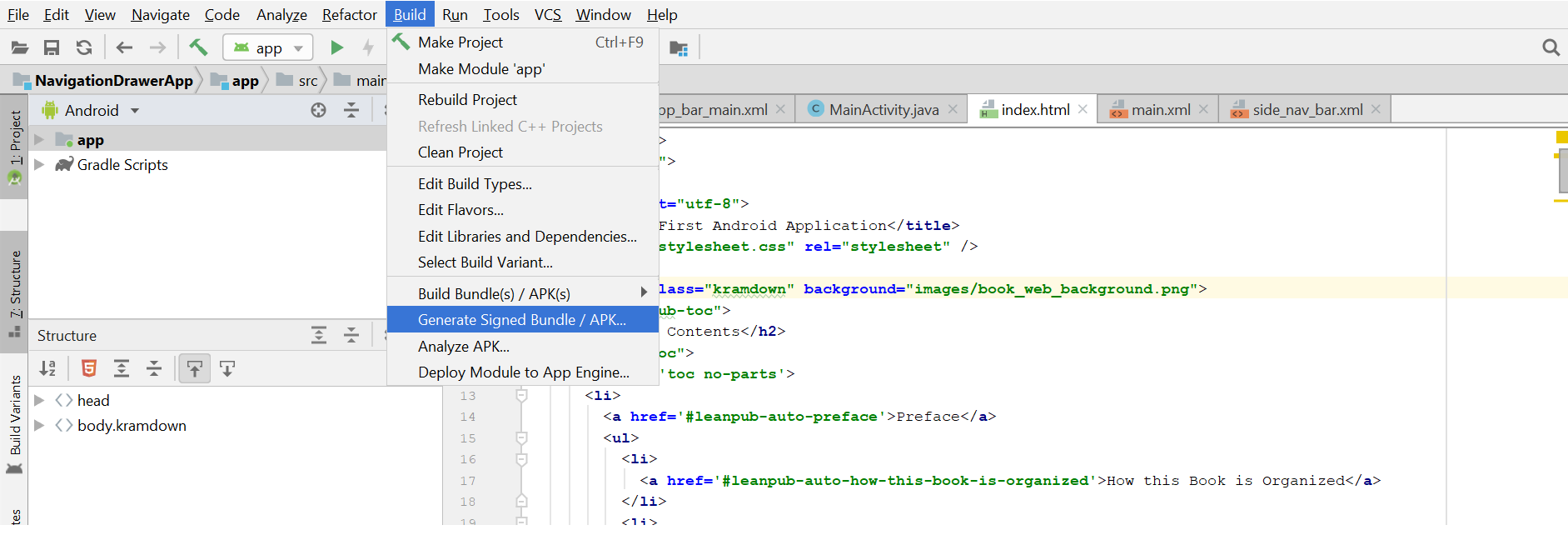
-
In the Generate Signed Bundle or APK dialog box select the APK checkbox then click Next

-
In the next screen enter a Key store path, Key store password, Key password and check the Remember password checkbox then click Next

- On the next screen select “release” as your build variant
-
Select V1 (Jar Signature) and V2 (Full APK Signature) in the Signature Versions checkbox then click Finish

-
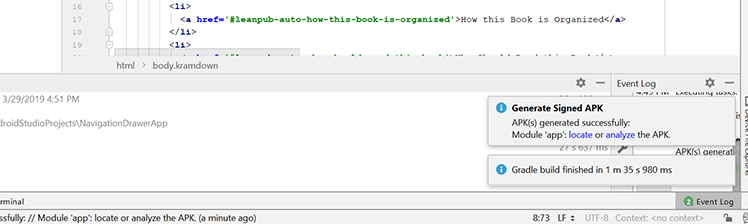
Once the build has completed successfully an information box will appear on the bottom right hand corner of you screen with instruction on where to find your APK files. It is usually located in the “release” directory
Uploading your App to the Play Store
In this section I will not go into details of Play Developer Console because the layout and User Interface changes regularly. I will however give you an overview of how to upload your app to the Play Store.
First things first, before you can begin publishing to the Play Store you will have to sign up for a Google Play developer account. You can sign up by going here https://play.google.com/apps/publish/signup/
Uploading your app to the Google Play Store is relatively easy. After you’ve signed up for a developer account you down upload your APK using the Play Console https://play.google.com/apps/publish/.