Android Studio
Android Studio
Introduction
Android Studio is the official Integrated Development Environment (IDE) that’s used to develop Android Applications. It replaces the Eclipse Android Developer Tools (IDE) as the preferred IDE for Android development. Android Studio is built on top of JetBrain’s IntelliJ IDEA and adds addition support for Android Development. Some of the many features the it provides are,
- An Android Emulator
- A drag-and-drop layout editor
- Android Virtual Device
- Gradle based build support
We will be using it to write, debug, build and run our code, amongst other things.
To download Android Studio, visit the site http://developer.android.com/sdk/index.html.
Android Studio User Interface Overview
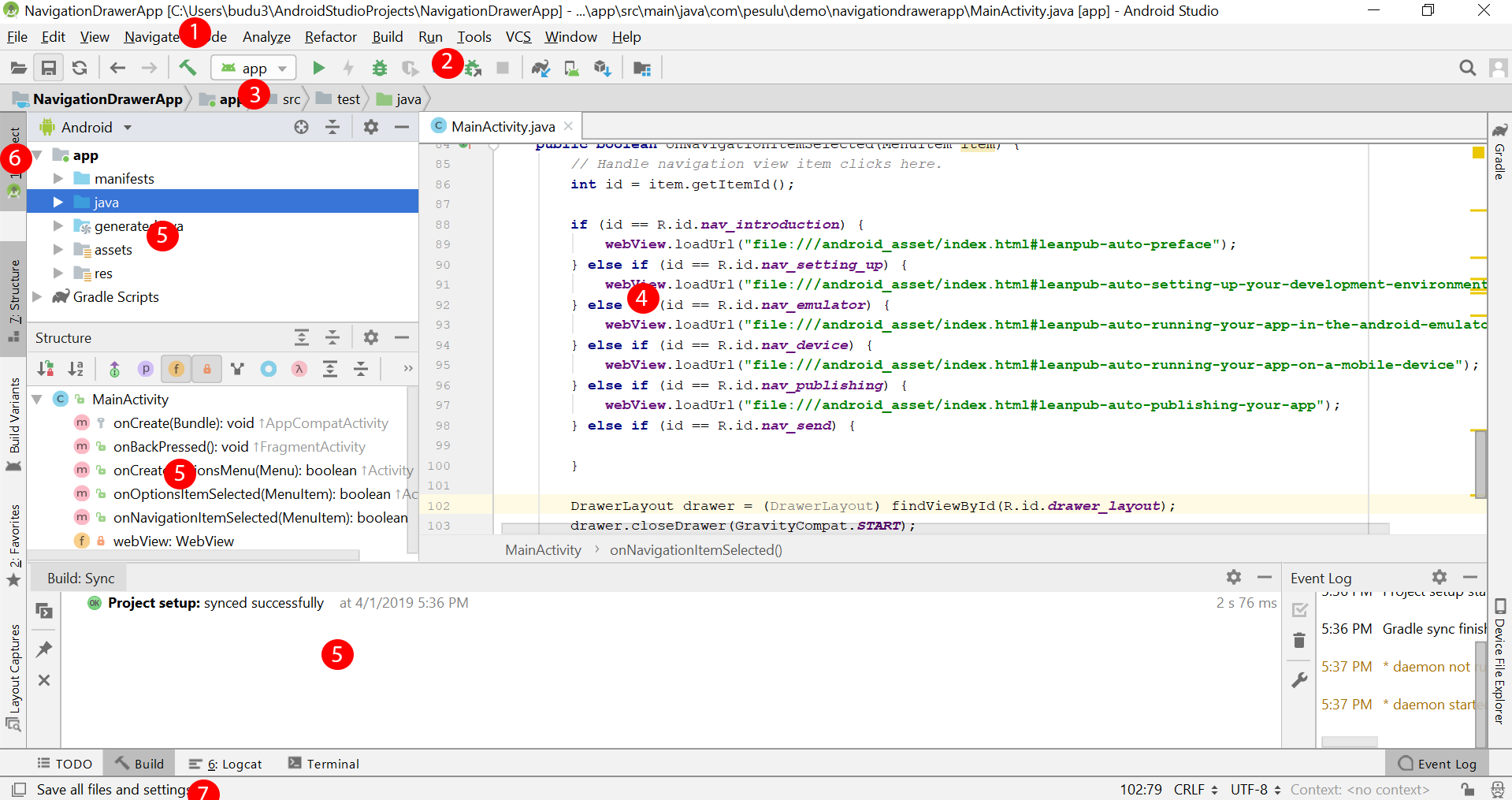
- Menu: this is where you will find the commands to perform various functions
- Toolbar: this is where you will find buttons that perform the various tasks in the IDE
- Navigation bar: helps you to navigate around your project files and directories
- Editor window: this is the main area where you will do most of the editing of your source code
- Tool window: displays several important tools such as the project hierarchy, the console etc
- Tool window bar: is used to display various tool windows
- Status bar: displays information about the current task being performed by the IDE
Design View Overview
I> In this book we will be using Android Studio version 3.3